


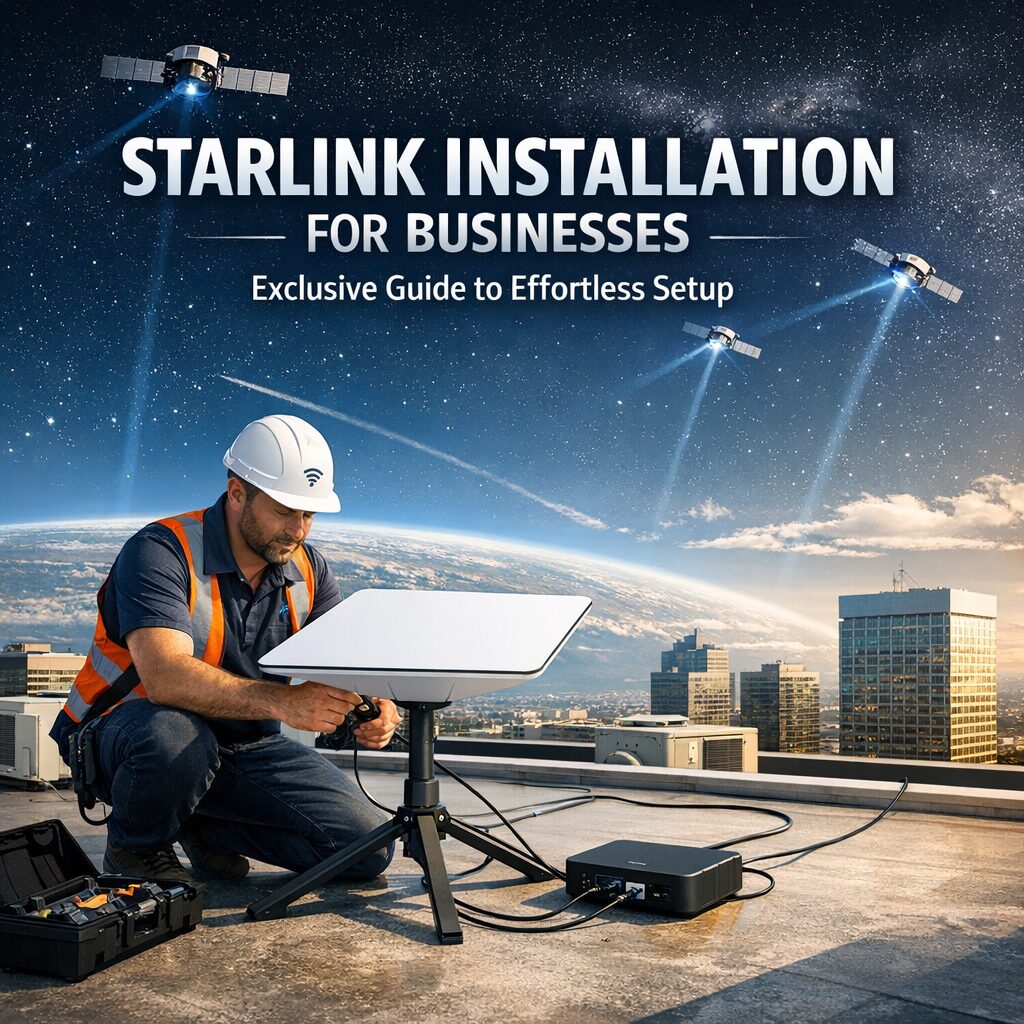
Starlink Installation for Businesses: Exclusive Guide to Effortless Setup
When it comes to upgrading connectivity, Starlink installation offers an innovative solution to businesses seeking fast, reliable internet—especially in remote or underserved areas. As more companies pivot towards digital operations, a dependable internet connection becomes critical for productivity, communication, and growth. This guide walks you through everything you need to know about setting up Starlink for your business, making the process smooth and hassle-free.
Understanding Starlink and Its Business Benefits
Starlink is SpaceX’s satellite internet service designed to provide high-speed broadband access using a constellation of low Earth orbit (LEO) satellites. Unlike traditional satellite internet relying on geostationary satellites positioned much farther away, Starlink’s LEO technology drastically reduces latency and boosts speed. For businesses, this translates to seamless video conferencing, faster cloud access, uninterrupted data transfers, and enhanced productivity—especially in locations where fiber or cable internet is limited or prohibitively expensive.
The key benefits for businesses include:
– Wide coverage area: Ideal for rural, off-grid, or mobile office locations.
– High speeds and low latency: Supports VoIP, video calls, and real-time applications.
– Scalable connectivity: Suitable for small setups to larger enterprise needs with multiple users.
– Rapid deployment: Minimal infrastructure requirements enable swift installation compared to laying cables.
With these advantages, Starlink opens new doors for companies that require dependable and scalable internet solutions.
Preparing for Your Starlink Installation
Before diving into the installation process, it’s essential to prepare and understand the specific requirements for your business premises:
1. Verify Service Availability in Your Area
Starlink is continually expanding its network, but service availability may vary. Use the official Starlink website to check if your business address is within the coverage zone. Early access may require pre-orders or waiting lists, especially in high-demand regions.
2. Assess Your Business Needs
Determine the number of employees, devices, and expected internet usage patterns. While Starlink’s basic service can support multiple users, high-demand applications such as video production, large file transfers, or cloud hosting might necessitate additional hardware or enhanced service tiers.
3. Choose the Right Equipment
The Starlink kit typically includes:
– A satellite dish (Starlink user terminal)
– Mounting hardware
– Wi-Fi router
– Power supply and cables
For businesses, additional mounting options such as rooftop mounts or poles might be advisable for ensuring optimal dish positioning.
Step-by-Step Starlink Installation Guide for Businesses
Step 1: Find the Optimal Location for Your Dish
The Starlink dish requires a clear, unobstructed view of the sky to communicate with the satellites. Opt for a rooftop, pole mount, or an elevated platform away from trees, buildings, or other physical barriers. Starlink’s app includes a “View Obstruction” feature to help you assess the site accurately.
Step 2: Assemble the Equipment
Unpack the components and assemble the dish according to the included manual. Secure the dish using appropriate hardware, ensuring stability against wind and weather conditions. Businesses should consider professional installation services for permanent mounting or complex setups.
Step 3: Connect to Power and Router
Plug the dish into the provided power supply. Connect the dish to the Wi-Fi router using the supplied cable. The router enables wireless connectivity across the business premises, or you can connect it directly to Ethernet ports for wired access in offices requiring stable connections.
Step 4: Use the Starlink App for Setup and Testing
Download the Starlink app on your smartphone. The app guides you through the setup process, connecting your dish, testing internet speed, and ensuring proper alignment. It also provides diagnostic tools and alerts for network performance.
Step 5: Configure Your Network
Adjust router settings to optimize for your business needs. This may include setting up guest networks, prioritizing applications through Quality of Service (QoS) settings, or implementing security protocols such as VPNs and firewalls.
Tips for Maintaining Optimal Starlink Performance
– Regularly check for obstructions: New growth, construction, or environmental changes may impact signal quality.
– Upgrade firmware: Keep your Starlink device software updated for improved features and stability.
– Consider surge protection: Protect your equipment from electrical damage, particularly in areas prone to storms.
– Scale with business growth: If your bandwidth needs increase, evaluate the Starlink Business service plan or additional equipment.
Troubleshooting Common Starlink Installation Issues
Businesses may occasionally encounter typical hurdles during setup:
– No signal or poor connectivity: Reposition the dish or check for temporary obstructions.
– App connection problems: Restart devices or reinstall the app to troubleshoot.
– Intermittent drops: Review local weather conditions and equipment placement.
Consult Starlink’s customer support for persistent issues or advanced assistance.
Final Thoughts on Starlink Installation for Businesses
Starlink is transforming internet accessibility for businesses worldwide by making high-speed connectivity accessible even in the most challenging environments. With straightforward installation and adaptable infrastructure, integrating Starlink into your company’s network can elevate your operational efficiency and future-proof your communications.
By taking the time to properly plan, install, and maintain your Starlink system, businesses can enjoy uninterrupted connectivity and unlock new opportunities regardless of their location. Whether you’re running a remote office, a retail store, or a growing enterprise, Starlink installation offers a competitive edge tailored for modern business demands.
Leave a Reply